
A flag, right where you look.
Your toolbar icon updates as pages load, giving each tab its own little piece of geographic context.
A little flag. A world of context. See the likely country or region of the site you’re visiting, right in your Chrome toolbar.
Available for Chrome on desktop.


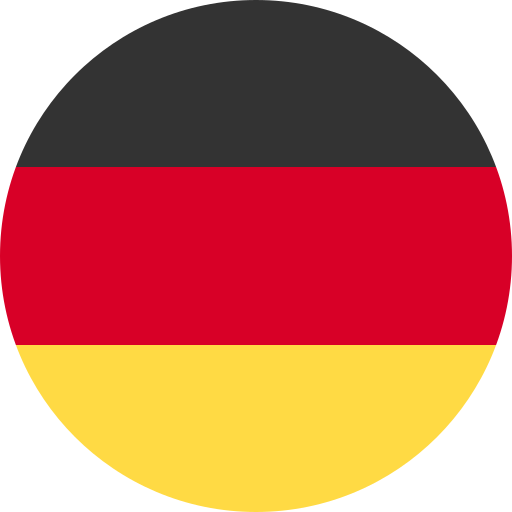



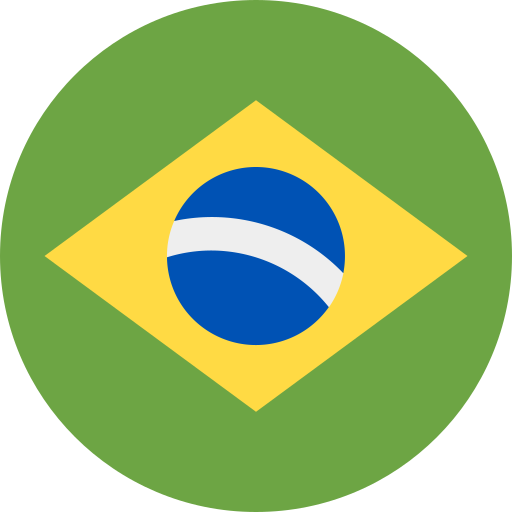
Useful context, one glance away.
Built to fit the way you already browse.
Your toolbar icon updates as pages load, giving each tab its own little piece of geographic context.
Click to see the country or region, resolved IP when available, and current hostname. All in one small popup.
Local and private-network addresses get a LOCAL indicator. A useful distinction when your browsing stays nearby.
A little memory goes a long way. Local caching helps reduce repeat lookups as you browse.
No dashboard to learn.
Just a useful little addition to your toolbar.
Install o-flag from the Chrome Web Store. No account or sign-up needed.
Open Chrome’s extensions menu and pin o-flag so its flag is always in view.
Visit a website. Glance at its flag, or click the icon for a little more detail.
There’s no account to create, and no page content to read. Lookup results stay cached on your device. When needed, o-flag contacts DNS and IP services to work out a region.
The details are in our privacy policyCurious about the details?
You’re in the right place.
It shows the likely country or region associated with the website’s network endpoint. When available, o-flag uses response metadata, such as a Cloudflare edge location. Otherwise, it uses the server IP or a DNS and IP lookup. Click the icon to see the region, resolved IP when available, and current hostname.
Many websites use a content delivery network (CDN) to serve pages from locations around the world. The flag can represent the edge server handling your visit, rather than the original server or the company’s home country. Results can also change with your network and the available lookup data.
Local, private-network, and certain special-use addresses don’t have a normal country location. o-flag gives them a LOCAL indicator instead of a country flag. This includes addresses such as localhost and private network IPs.
o-flag is available for desktop Chrome and works with regular HTTP and HTTPS websites. Browser settings pages, new-tab pages, and other internal pages aren’t supported. If lookup data is unavailable or a request fails, a region or IP may be unavailable too.
There’s no account to create, and the extension doesn’t read page content, form entries, or passwords. It processes page addresses and network metadata to detect a region, keeps lookup caches on your device, and contacts third-party DNS and IP services when needed. The privacy policy explains exactly what is processed and why.
Read the full privacy policyYour next discovery is just a little flag away.